
Catalog photos
The menu shows a photo of each garment, and a drawing of its slot when there's none. You take the photos yourself from the admin panel, inside the game: a studio photographs every garment on its own, with a transparent background. You need no screenshot resource, no outside service and no command in F8.
How the studio works
- You go to your own dimension, high in the sky over the sea. Your character stays invisible, invincible and still under an invisible platform, and comes back where it was when you leave. If the game crashes, you disconnect or the server restarts during a run, the character is put back there the next time it loads.
- The garments go on a mannequin only you can see. Its body is invisible, and it wears the invisible head: a head that draws nothing, so hats, glasses, masks, earrings and hair come out floating, with no face behind them and nothing painted.
- Each photo is cut out from the green background, cropped around the garment, and saved twice: 256 px for the menu and 512 px kept on the server.
- It takes one to two seconds per photo. It works in batches and picks up where it stopped.
The invisible head
The invisible head is the zaiders_studio resource, in the download. It doesn't go in server.cfg: zaiders_appearance starts it after every other resource and, if a face pack starts later, puts it last again (the console says so). It needs nothing for a face pack: the menu finds it by its collection name, not by its number. Only the studio's mannequin wears it, nobody else sees it, and the menu never offers it as a face.
Your game loads it when you join. If you were already connected when it started, reconnect once: Catalog photos says so.
Without it, or with Config.Studio.invisibleHead = false, the mannequin wears the game's head painted the background's color while the studio lasts, and the head leaves the photo like the background.
Before you start
Use a test server
Take the photos on a test server with the same clothing packs as your live one, then copy the zaiders_photos folder over, together with zaiders_appearance/saved/scan/ (what each photo's garment files had inside: photos by content and the Changes step use it). While the studio runs, your character is invisible, invincible and still.
- Run the game windowed or in borderless fullscreen.
- Turn FXAA off, and turn off ReShade or NVE if you use them. They change the colors and edges of the photo.
- Keep the game visible while it runs. If the game is minimized, another window covers it or the screen locks, the run waits and goes on by itself when the game shows again. If the game's picture stays black for over ten minutes, the run stops with a message: take the photos again, and the ones that already have a photo are skipped.
- Join once with an admin after installing or after changing clothing packs, so the server knows which garment is behind each number.
- A clothing pack started while you're connected isn't in your game, because FiveM loads clothing when you join. Reconnect before taking its photos.
- Anti-cheats and AFK kicks. For the whole run (hours for a full catalog), your character is invisible, invincible and still, far away and high over the sea. Exempt the admin who takes the photos in your anti-cheat and your AFK kick, or use a test server without them. On the server they can ask
exports.zaiders_appearance:isInStudio(source)or listen to thezaiders_appearance:studioevent: see The photo studio. - Weather and time scripts. The studio keeps its own light (noon and
Config.Studio.weather, applied again while it runs) and pauses the scripts listed inConfig.Studio.syncPause, qb-weathersync out of the box. A script with no event to pause it, such as vSync, has to be stopped while you take photos, or made to leave the admin alone. F8 warns when another script fights the studio's light. - Scripts that draw on the screen, such as a watermark, a logo or an FPS or ping counter, end up in the face and ped photos. Hide them while you take photos.
- Get out of any vehicle and stand up before you start a run. The panel opens anywhere, but the studio refuses to start from a vehicle, or while your character is dead, downed, cuffed, ragdolled or falling, and says so.
Taking the photos
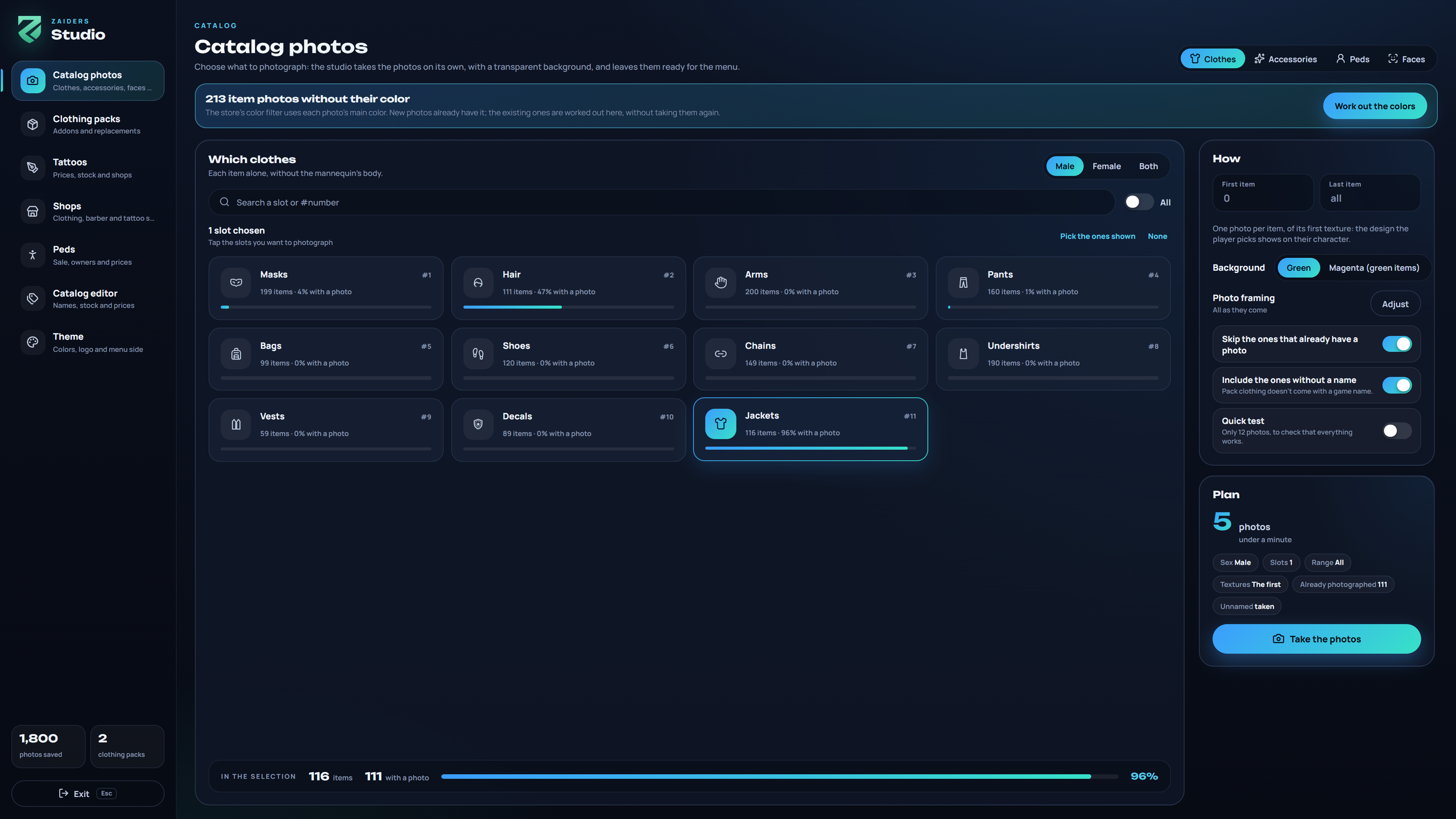
Open the panel on Catalog photos
/zappearance photos.Choose what to photograph
At the top: Clothes, Accessories, Peds or Faces. Pick the sex (Male, Female or Both) and click the slots you want. Each slot shows how many garments it has and what share already has a photo. All picks every slot.
Choose how
- First item and Last item: a range of garment numbers, or all of them.
- Background: Green, or Magenta for green garments.
- Skip the ones that already have a photo: on, it only takes what's missing.
- Include the ones without a name: pack clothing doesn't come with a game name.
- Quick test: only 12 photos, to check that everything works.
One photo is taken per garment, of its first texture: the design the player picks shows on their character.
Check the plan and start
Plan says how many photos it will take and how long it will last. Click Take the photos.
Let it run
The panel hides and a meter in the top left shows the progress, the garment being taken, the last photo, and Pause / Resume and Stop. Esc also stops. What was saved stays saved. When it ends, a notice says how many photos were saved, how many were empty and how many failed.
Send them to the players
Run
ensure zaiders_photosso players get the new photo list. A photo taken again for a garment that already had one needs nothing: the menu asks the server whether it changed.
Glasses
With the invisible head, only the background is behind the glass, so one photo gives the frame and the glass with their color and transparency, without eyes or a face behind.
Over the painted head (without the invisible head), each pair is photographed twice, with the background and the head green and then magenta. What changes between the two photos is what shows through the glass. twoTone = 'always' in the glasses' shot takes them twice with the invisible head too: exact also for lenses tinted the background's color, at half the speed. If the game ever doesn't let the head be painted, the glasses are skipped (the eyes would show) and the end message says so.
If you had older photos of glasses showing eyes, take them again with Skip the ones that already have a photo off.
Hair
Hair photos use one hair color. Pick it in Catalog photos with Hair chosen, under Hair colour: the game's colour and highlight. It's saved for every admin (saved/studio.json). To redo the hair photos you already have, turn off Skip the ones that already have a photo.
The hair floats on the invisible head too. The game tints hair only through the face blend, and that blend draws a face, so the mannequin has no blend and the studio tints each hair itself, for its photo only: the game's own math and your game's color palette, read in your game. Nothing of the game ships with the resource.
- The studio tints every hair in the color picked, the game's and the packs', including hair packs whose files are encrypted by Cfx.re escrow. The exceptions follow.
- A pack hair the game never tints is taken as it is, in its own colors, with nothing swapped, floating too. The studio knows it only when the server can read the hair's model (its
.ydd, not encrypted) and finds noped_hair_*shader in its high detail. The game's ownmale_heistandfemale_heisthair 0, drawn with the plainpedshader, are taken as they are too. - A hair whose model has tinted and untinted parts is taken at the end on the painted head, with the face removed from the photo, so it looks as in the game.
- A hair whose texture the studio can't read (the game doesn't give it by its usual name and the server can't read the names inside its
.ytd) is tried once more, then taken on the painted head too. - F8 lists the hairs taken on the painted head and why, in the server's language.
- Known limit: when a hair's model is encrypted by escrow, nobody can read which of its parts the game tints, so the studio tints the whole hair. Parts the game doesn't tint, such as beads or ties that share the hair's texture, come out in the hair color.
Config.Studio.invisibleHair = falsetakes every hair on the painted head.
When a photo can't be taken
A run never stops for one garment:
- A garment, face or ped whose files your game hasn't downloaded yet (the first run against a remote server) is tried again at the end of its slot. If it still hasn't arrived, it counts as failed, never as empty. Run that slot again later: Skip the ones that already have a photo takes only what's missing.
- A garment too big for its slot's framing, such as wings, a large backpack or a mascot head, fails on its own with a message, and the run goes on. Give that slot more Distance in Photo framing, then take it again.
- Small items, such as stud earrings, get their photo too. An earlier version saved them as empty: to redo them, take Earrings again with Skip the ones that already have a photo off.
- At the end of a run, F8 lists the photos that failed and why, in the server's language:
studio: N photos could not be taken: ….
A run stops, with a message, when the game can't show the studio:
- Three photos in a row show no background: either those garments are bigger than their framing (move that slot's camera back in Photo framing) or the game lost its textures (restart FiveM).
- The game's picture stays black for over ten minutes (the game minimized or the screen locked). Until then the run waits.
- The game says it shows the studio but the picture isn't the studio for over a minute: the video memory filled up. Restart FiveM.
Take them again afterwards: the ones that already have a photo are skipped.
Faces and peds
- Faces photographs the faces of
Config.FaceRanges, up toConfig.ShapeMax, from the front, bald and without makeup. They show in the barber's Heritage, and the game's own portrait is used for faces without one. With a face pack, set those two values first: see Config reference: faces. - Peds photographs whole peds, from the game and your addon ones. The ped shop shows them before the pictures from FiveM's documentation.
Photo framing
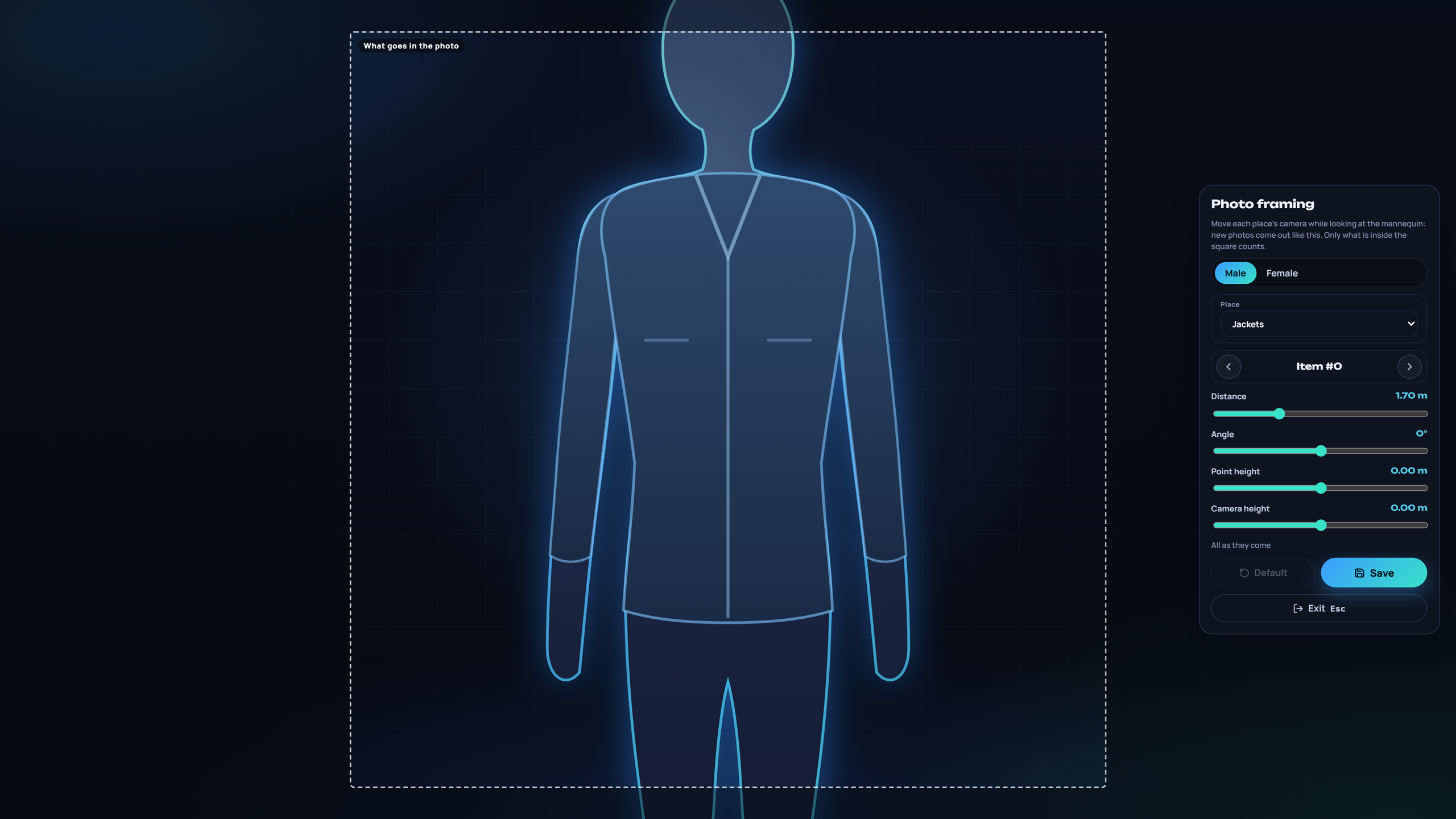
Each slot's camera can be moved by hand. In Catalog photos, Photo framing → Adjust: the panel hides, the studio dresses the mannequin with an item of the slot, and the game's picture shows the square that goes in the photo (the rest darker). On one side: Male or Female, the slot, the item (‹ ›) and four bars that move the camera live:
- Distance: from 0.3 to 5 m.
- Angle: around the mannequin, from −180° to 180°.
- Point height: the height of the point the camera looks at, ±0.6 m.
- Camera height: the camera's height over that point, ±1 m.
Save keeps it for every admin, in saved/studio.json. Default goes back to Config.Studio.shots. Esc or Exit leaves and brings the panel back. New photos come out with that framing.
Colors for the store's filter
The store's color filter uses each photo's main color. Each new photo saves it in manifest.json. For photos taken before, Catalog photos shows N item photos without their color with Work out the colors: the panel reads each photo, works out its color and sends it to the server, with a progress bar and Stop. It doesn't take the photos again. When it ends, run ensure zaiders_photos so players get the colors.
How players get the photos
| Mode | How it works | Set it with |
|---|---|---|
| On demand (default) | Players don't download the photos when they join. The menu asks the server for the ones on screen, a few at a time, through the game's own connection. Each player keeps them, so next time they show at once. Each player gets at most bps bytes a second and perMinute photos a minute. | Config.Photos.onDemand = true |
| All on join | Every player downloads every photo when they join. | Config.Photos.onDemand = false, and uncomment 'photos/*.webp' and 'tattoos/*.png' in zaiders_photos/fxmanifest.lua. |
| From a CDN | Upload the photos/ and tattoos/ folders to a web server or CDN. Players download the photos they look at from there. | Config.Photos.url = 'https://...' |
On demand, only the pictures in photos/ and tattoos/ are sent, by their exact name. The master/ and data/ folders never leave the server.
From a CDN, upload again after every change
The studio, Changes and photos by content write only on the game server. Upload photos/ again after every run, every retake from Changes and every time photos by content moves photos (the console says so). Until then, players see the old photo, or none.
Tattoo pictures
The game's tattoos show their own picture. For your addon tattoos, the server can make a small picture of each one from its own texture:
- in the panel: Tattoos → Images → Make the missing ones (or Redo all), or
- in the server console:
zappearance_tattoo_images(zappearance_tattoo_images allmakes them all again).
Then run ensure zaiders_photos.
Cleaning and repacking
zappearance_clean_photos, in the server console, deletes the photos that came out a single color.- Each photo is named after the garment's pack and its number inside the pack, such as
m_c11_mypack_002_003_00(male, jacket, packmypack_002, garment 3, texture 0). Adding another pack doesn't change those names. Repacking a pack does, but its photos follow it: each photo recognises its garment by what its files have inside (Config.Photos.byContent, on by default), checked when the server starts, when a clothing pack starts or stops and when you leave the studio. A photo whose garment is now a different one is hidden until you take it again. - Clothing packs → Changes lists the garments whose model or texture changed since their photo, per pack, and takes only those again (also
zappearance_changesin the server console). The same section shows which collections have photos.
The zaiders_photos folder
| Folder or file | What it is |
|---|---|
photos/ | What the menu shows: 256 px WebP with a transparent background. |
master/ | The same photos at 512 px. They stay on the server. |
manifest.json | Which garments, faces and peds have a photo, and each photo's main color (the store's color filter). The menu reads it. |
data/ | Each garment's game name and the packs' marks. Server only. |
tattoos/ | The pictures of the addon tattoos, and their lists. |
The panel writes all of this; don't edit it by hand. Keep this folder when you update ZAIDERS Appearance. What each photo's garment files had inside is kept in zaiders_appearance/saved/scan/.