
Clothing store
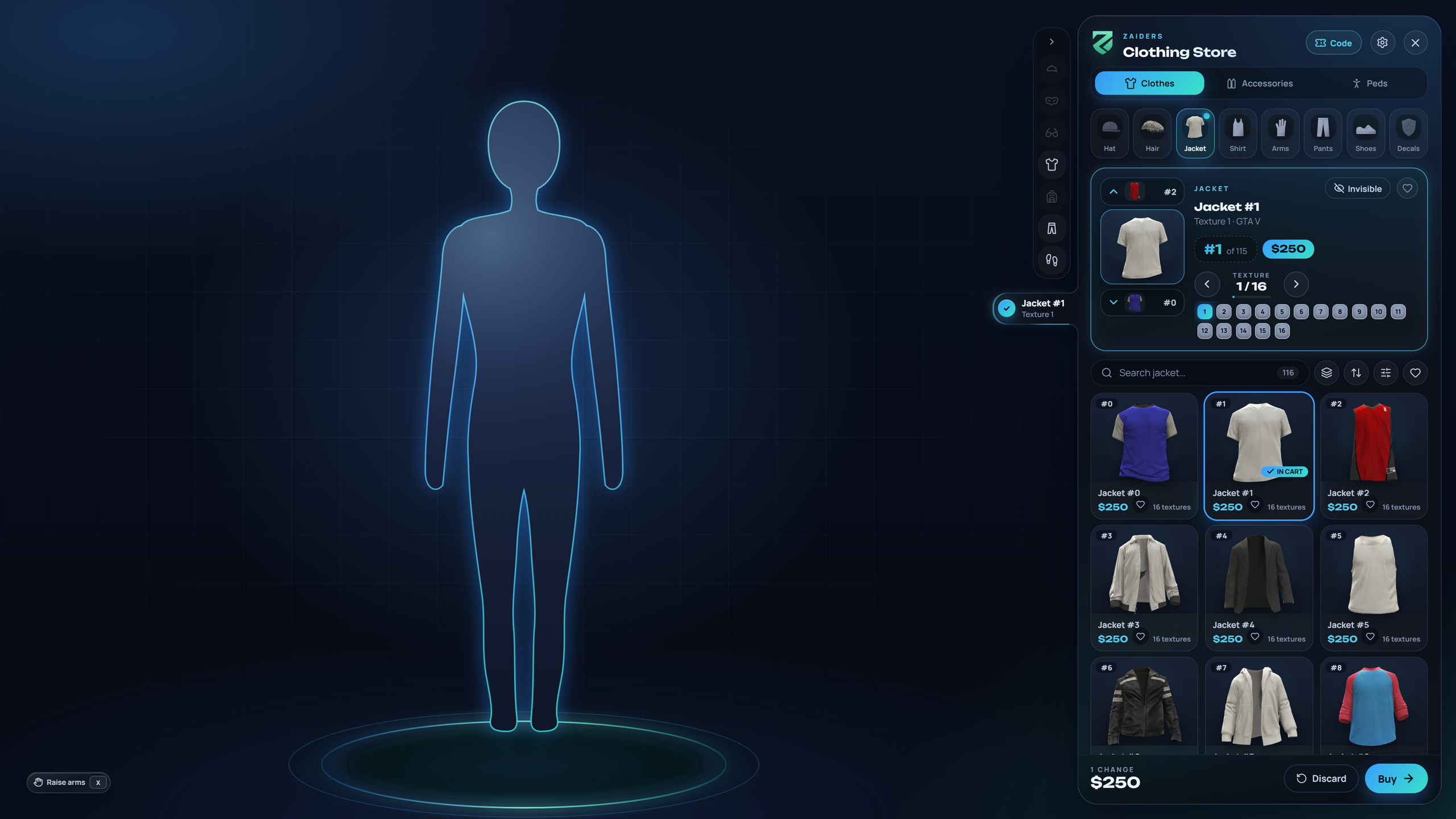
Players walk into a clothing store on the map and press E. Everything they try on is free until they pay. The menu shows every garment of the server with its photo, its textures and its price.
Opening a store
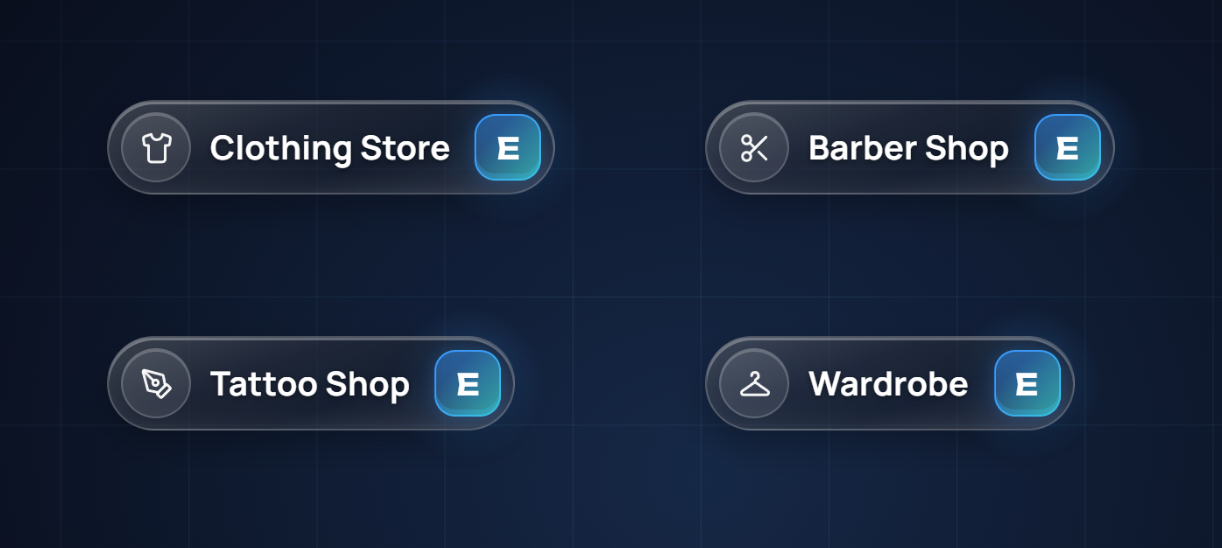
At a store, a floating sign with the store's name and the E key shows where to stand. When E can be pressed, the key lights up.
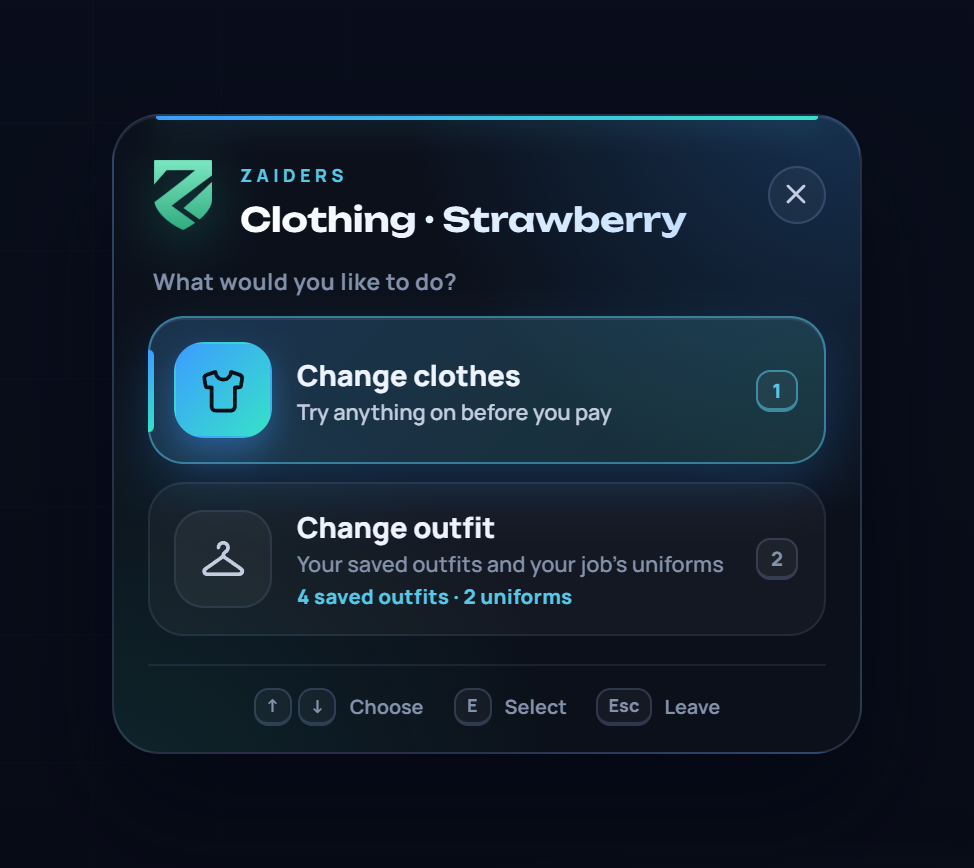
In a clothing store, E first asks what the player wants:
- Change clothes opens the store.
- Change outfit opens their wardrobe: saved outfits and their job's uniforms. It also shows how many they have.
The arrows or W/S choose, and E, a click or the option's number accepts. Esc leaves. If a store offers only one of the two, E goes straight to it. Each store's options are set in the panel. See Map shops & blips.
The menu
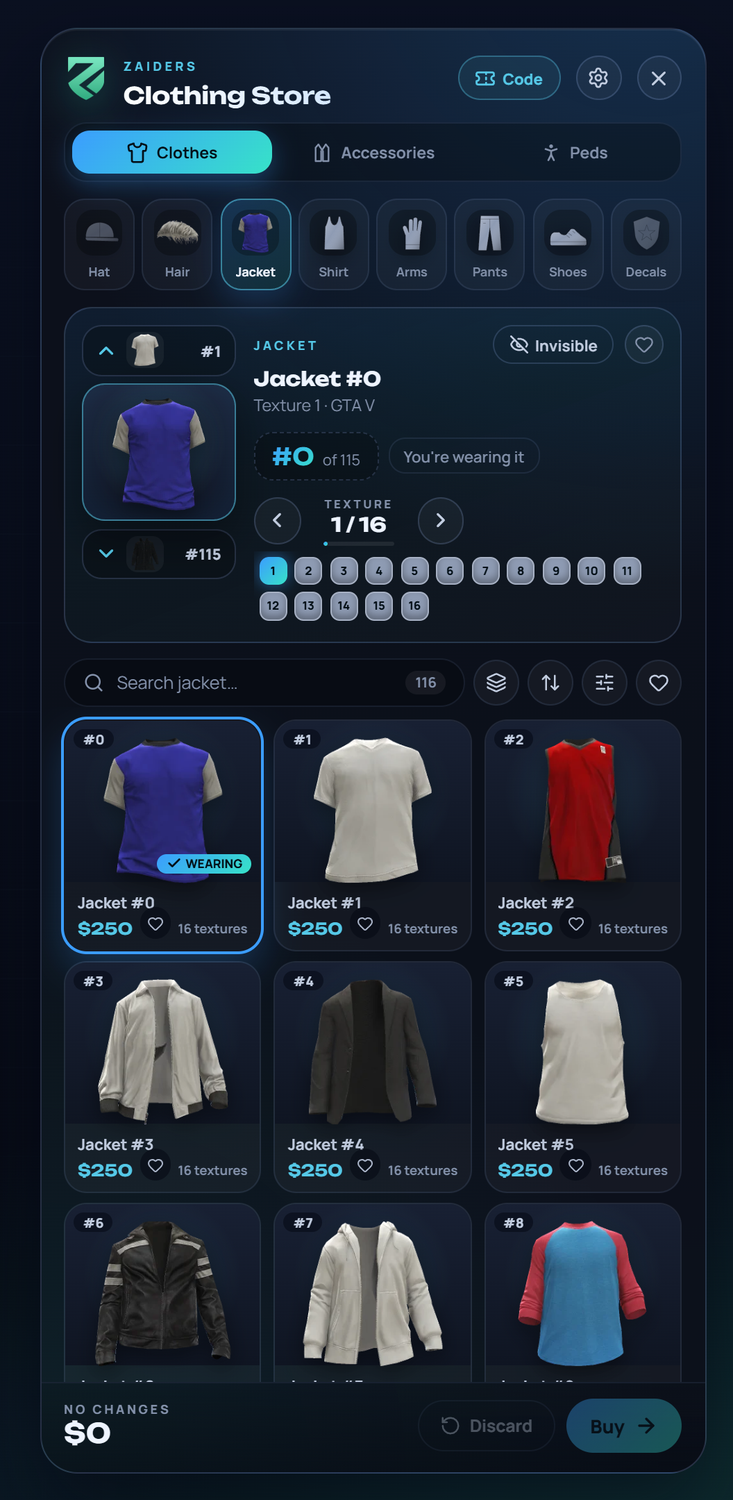
From top to bottom:
- The header. The server's brand and the shop. A store with its own prices shows a tag next to the brand (−20 % in green, +50 % in orange), and pointing at it says the percentage ("This store is cheaper: it charges 80% of the usual prices"). Code uses an outfit code another player shared (see below). The gear opens Settings, and the cross (Esc) leaves; with changes, it asks first (see Leaving with changes).
- The sections. Clothes, Accessories and Peds.
- The slots. Hat, hair, jacket, undershirt, arms and gloves, pants, shoes and decals. Accessories has masks, glasses, earrings, chains, watches, bracelets, vests and bags. A store that sells only some things shows only its sections and slots (see Each store's catalog and prices).
- The garment you're on. Its photo, its number, its textures and its price, with the heart and Invisible at the top right. Above and below are the previous and next garments.
- Search and filters. Search by name or number, filter by pack, sort by number, name or price, show only your favorites, or narrow it down with Filters.
- The grid. Every garment of the slot, with its photo, price and how many textures it has. What you're wearing is marked.
- The cart. How many changes, the total, Discard and Buy.
Browsing garments
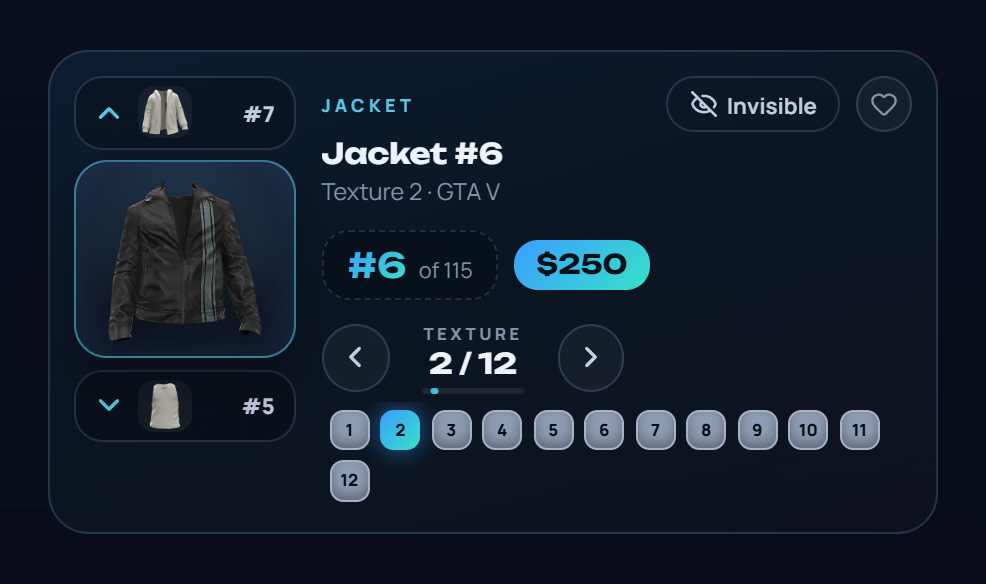
| Key or click | What it does |
|---|---|
| ↑ / ↓ | Next or previous garment of the slot. |
| ← / → | Next or previous texture of the garment. You can also click a texture's number. |
| A card in the grid | Puts that garment on. |
| The heart | Adds the garment to your favorites. They're kept in your game, per garment. |
| Esc | Closes what's open (a sheet, the search). Otherwise it leaves: with changes, it asks first (see Leaving with changes). |
Every change goes on the character at once, to try it. Nothing is charged until you pay, and leaving without paying puts back what you had. Taking something off (with Invisible or the take-off buttons) is a change too: a free line in the cart.
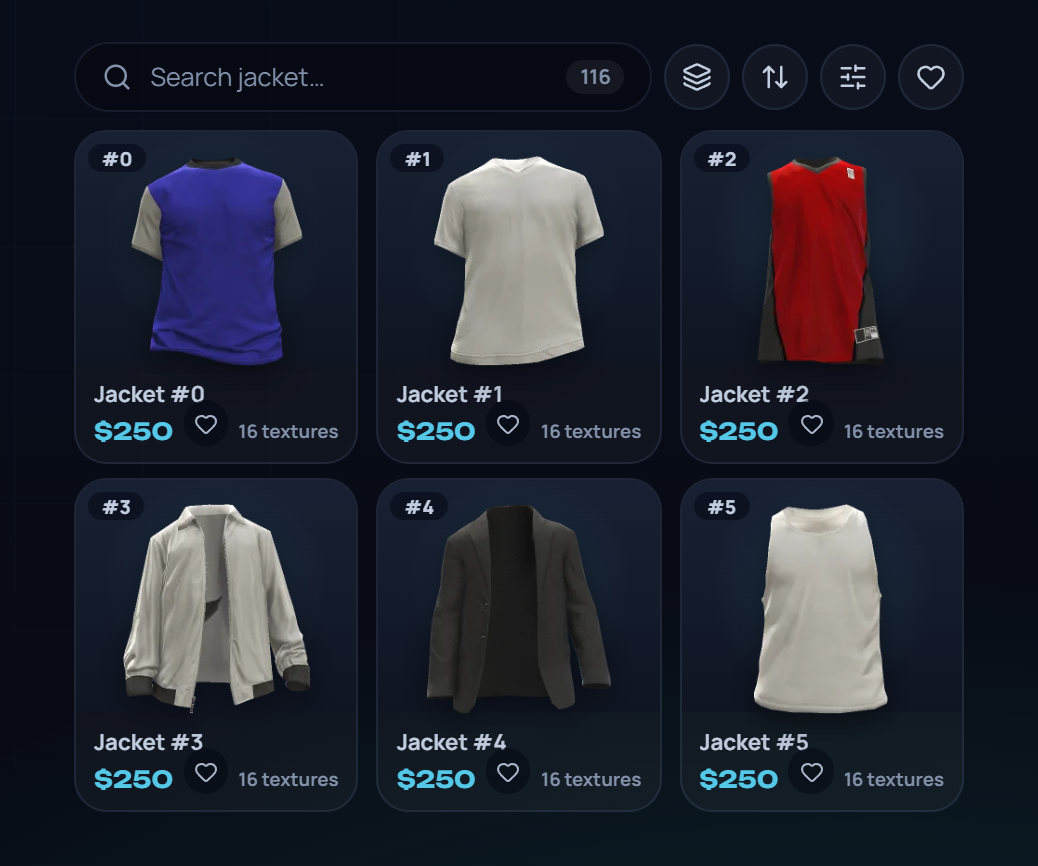
Invisible
Invisible, at the top right of the garment card next to the heart, puts "nothing" in that slot: no accessory or mask, and on the body what the take-off buttons put (Config.Undress and Config.UndressWithTop), only for that slot. An invisible jacket doesn't take off the undershirt.
- It's free, even where the garment is out of stock or only for a job.
- Pressed again, it brings back the garment you had.
- It isn't on Hair, nor on a ped other than the freemode man and woman.
Config.InvisibleButton = falseremoves it.
Filters
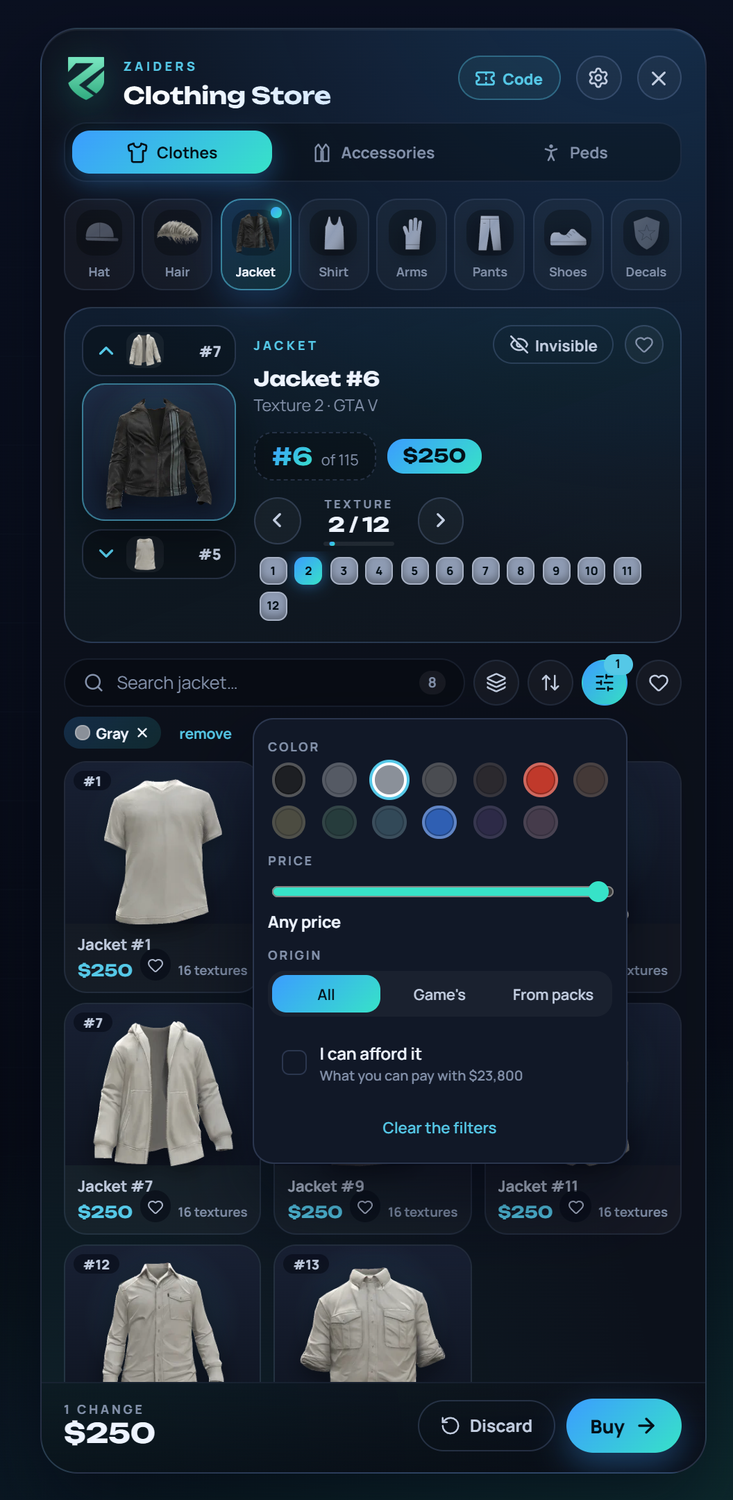
Filters, next to sort, narrows the grid down:
- Color: 13 named colors, only the ones that slot has. A garment counts when any of its photographed textures is that color, and then its first texture of that color is the one shown and put on.
- Price: Up to $X, at this store's prices.
- Origin: All, Game's or From packs.
- I can afford it (clothing store only): what you can pay, with the larger of your cash and your bank. What you're wearing always counts.
Each active filter shows above the grid as a chip that removes it, and Clear the filters removes them all. When editors gave garments a subcategory, a row of chips (All, then each subcategory) shows too.
The color filter needs each photo's main color. New photos come with it; for older ones, see Catalog photos: colors for the store's filter.
Hair
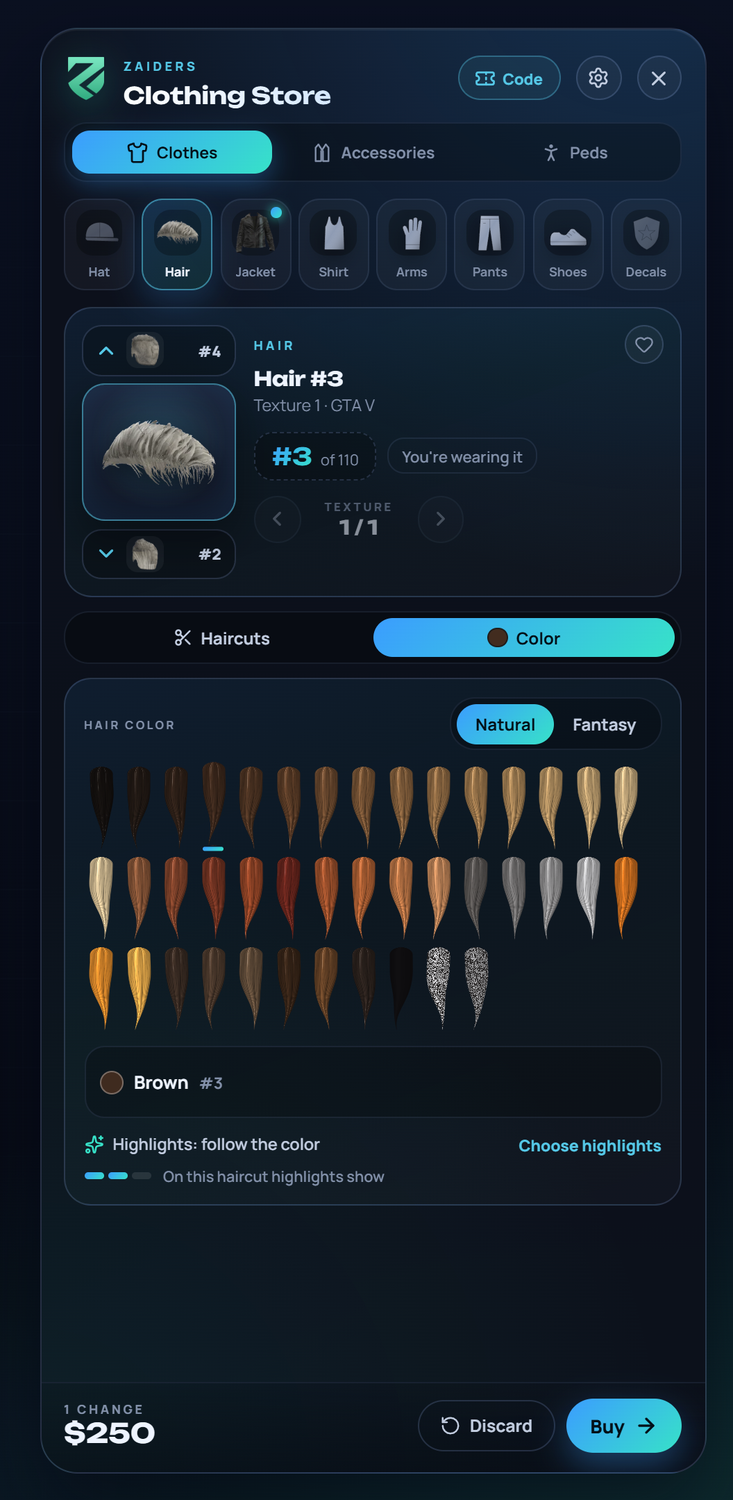
The store sells the haircut and its color too, as the barber shop does. In Clothes > Hair, under the haircut's card:
- Haircuts shows every haircut with its photo. ↑ / ↓ change it, as with any garment. Each opening starts here.
- Color shows the barber's color card: the 64 colors as locks of the player's own haircut, and Choose highlights. Without the card, the usual color and highlight squares.
A haircut the game doesn't tint keeps the color the player had, and the color isn't charged, also when it's picked from the photos. The haircut and the Hair color are two lines in the cart.
The haircut and the color cost the same as at the barber shop (hair and hairColor in Config.Prices), at the store's prices. A store that sells only some things sells hair only when Hair is one of its slots. Eyebrows, beard, makeup and the face are only sold at the barber shop.
Arms and gloves
With Config.AutoArms on (it is out of the box), putting on a jacket also puts on the arms an editor marked for it. If you had gloves, you get the gloves of the same style for those arms, or none when they have no gloves of that style.
Arms and gloves then shows only the arms that go with your top (Only the arms that go with your top · see all), and the arrows move only between those. Bare arms are free, and so are gloves of the style you already had. Config.AutoArms = false leaves the arms as they were.
Editors mark which arms go with each jacket, and which arms are gloves, with the right click (see For admins) or in the panel's Catalog editor.
Camera, pose and take-off buttons
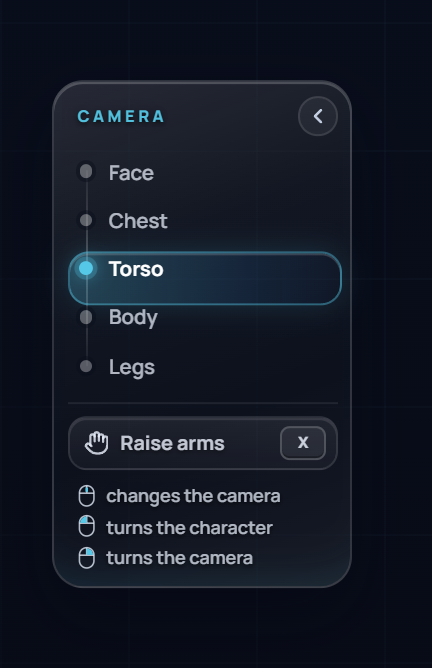
- The mouse wheel over the character moves the camera through five shots: Face, Chest, Torso, Body and Legs. When you pick a garment, the camera goes to it on its own.
- Left click and drag turns the character. Right click and drag turns the camera.
- X or the arms button raises the character's arms, so you can check that a jacket doesn't break. X again lowers them.
- The Camera focus setting shows these shots as a panel on the left, with the arms button inside.
The character stands still while the menu is open, in the same pose every time.
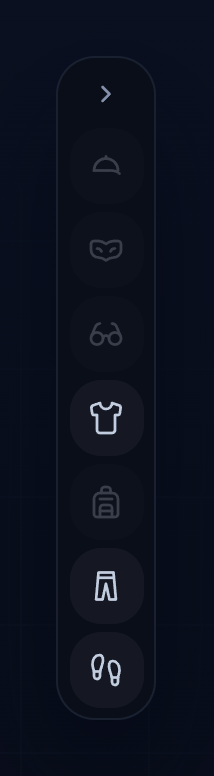
The take-off buttons beside the menu take a garment off with one click: hat, mask, glasses, jacket, pants, bag and shoes. Click again to put it back on. Taking the jacket off also takes off the undershirt, gloves and decals. Each garment taken off is a free line in the cart.
What goes on in each slot when undressing is set in Config.Undress and Config.UndressWithTop. See the Config reference.
Settings
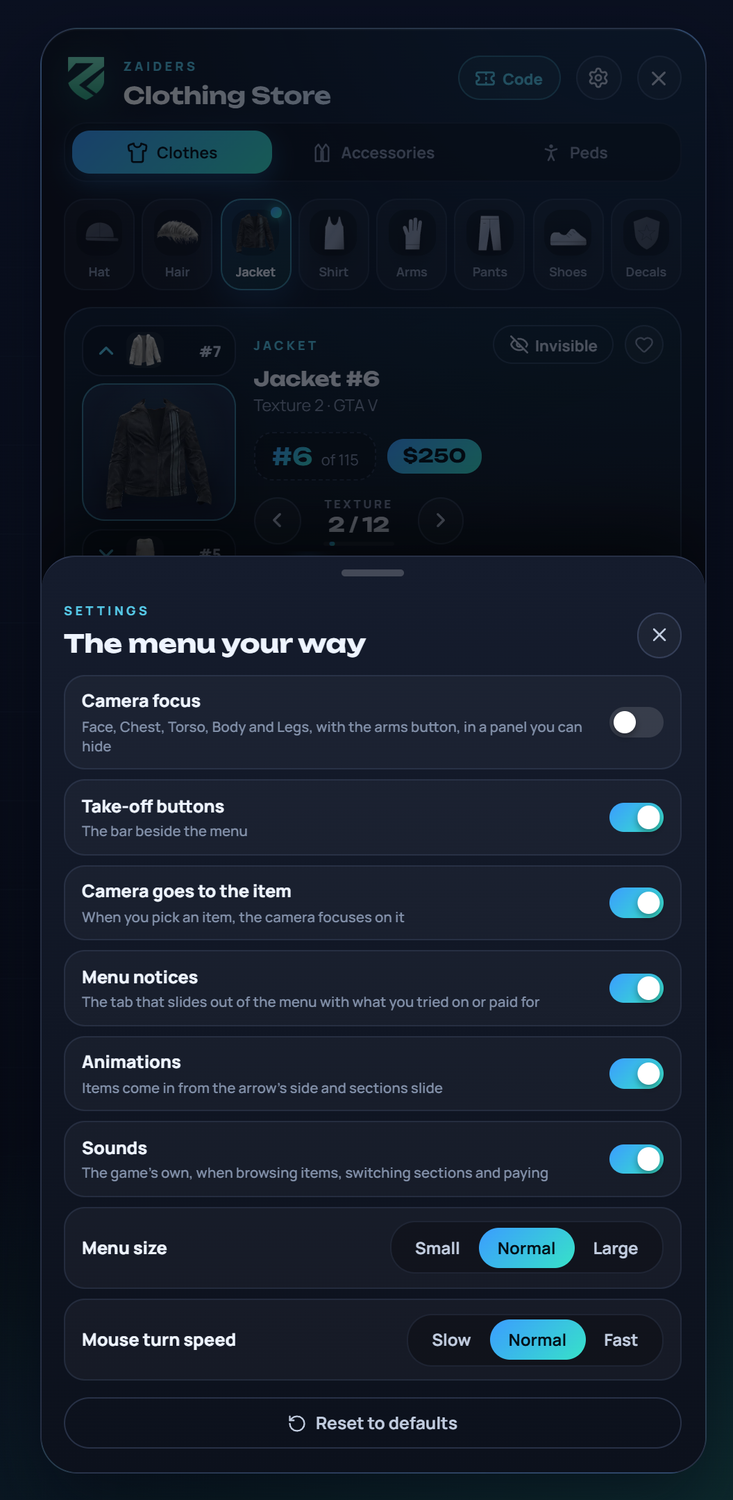
Each player can tune the menu to their taste. It's saved in their game:
- Camera focus: the camera shots and the arms button in a panel on the left.
- Take-off buttons: the bar beside the menu.
- Camera goes to the item: the camera frames each garment you pick.
- Menu notices: the tab that slides out of the menu with what you tried on or paid for.
- Animations: garments come in from the arrow's side, and sections slide.
- Sounds: the game's sounds when browsing, switching sections and paying.
Config.Sounds = falseturns them off for everyone. - Menu size: small, normal or large.
- Mouse turn speed: slow, normal or fast.
Reset to defaults puts everything back.
Paying
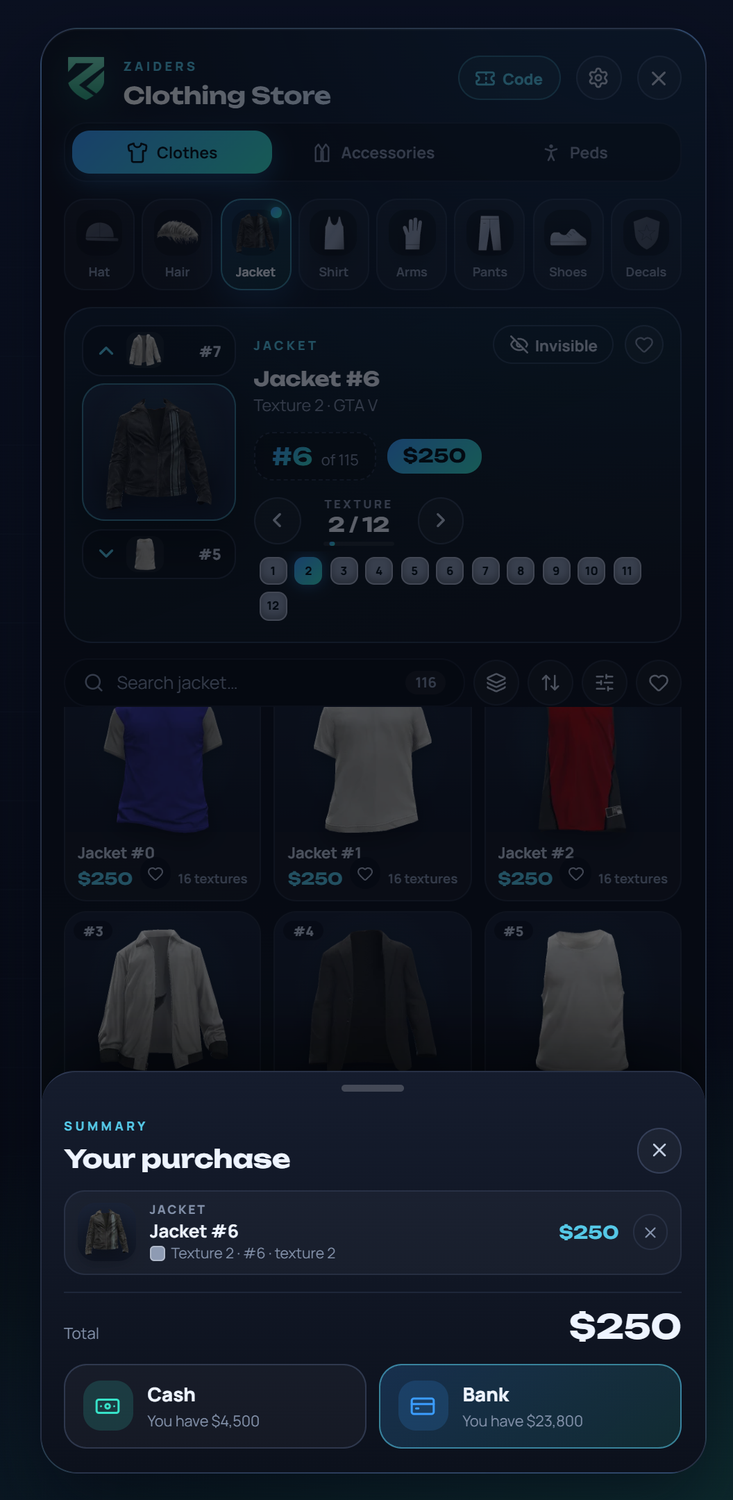
Buy opens the summary: each change with its price, the total, and the player's cash and bank balances. Each line can be undone. Paying charges the framework's money of the chosen account. When nothing costs anything, the button says Take it for free.
- The server prices every purchase with its own prices and checks it against the player's saved look. It never charges more than the menu showed. See What the server checks.
- At a store with its own percentage, the prices are already at that percentage, in the photos, the card and the cart.
- A line the store doesn't sell says Not sold here, and the purchase can't be paid until it's removed.
- After paying, the menu closes and the game says how much was charged.
Config.CloseAfterPay = falsekeeps it open. - Discard goes back to how the player was.
- Garments the player was already wearing are free.
Leaving with changes
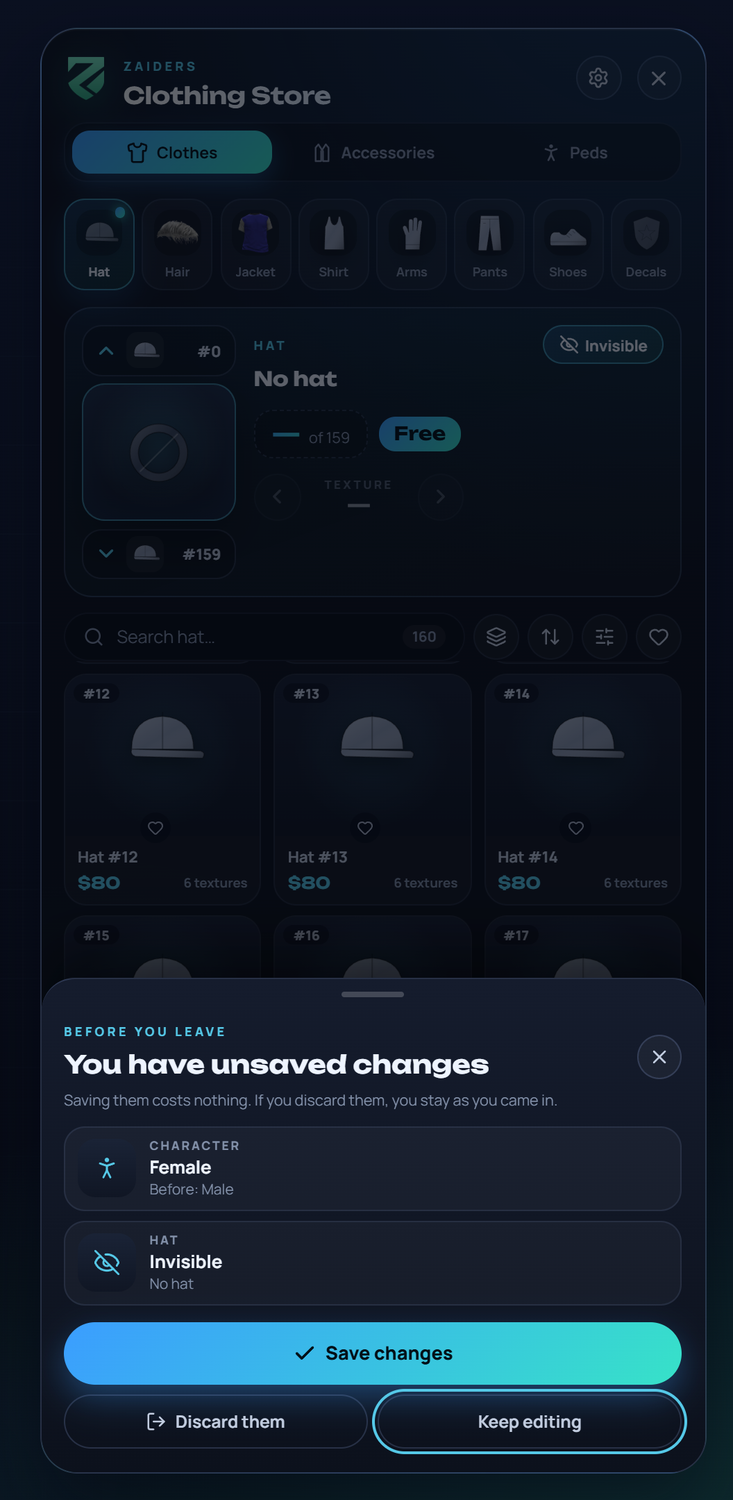
Nothing stays on the character without being confirmed. With changes, Esc or the cross asks before leaving:
- Something to pay, or something not sold here: the purchase sheet opens with Changes not bought yet and Leave without buying at the bottom. If the character's model changed too, a free row such as Character · Female · Before: Male goes on top: paying keeps it, leaving drops it.
- Only free changes (something taken off, the other sex, one of your peds, an outfit being tried, a height seen in Body): You have unsaved changes (Before you leave) lists them, with Save changes, Discard them and Keep editing.
- No changes: it leaves at once.
Save changes goes through the server like any purchase, at $0, and never pays anything; then the game says Done: your changes are saved. Discard them puts back what the player had, the model included. Keep editing, Esc or a click outside only closes the sheet. The sheet opens with the focus on Keep editing, so an Enter out of habit neither saves nor discards, and Tab moves between its three buttons.
Some changes can't be saved there:
- A ped from the ped shop that the player is trying on isn't theirs: Save changes stays off with "The ped you're trying on isn't yours: buy it in Peds to keep it, or discard it."
- A height seen in Body is only a preview: to keep it, the player chooses it in Body.
Whatever wasn't saved goes back, also when the game closes the menu (death, cuffs). Config.ConfirmOnExit = false brings back the old behavior: no question when there's nothing to pay, and the other sex or the chosen ped stay on when leaving, without being saved. See Config reference.
Using an outfit code
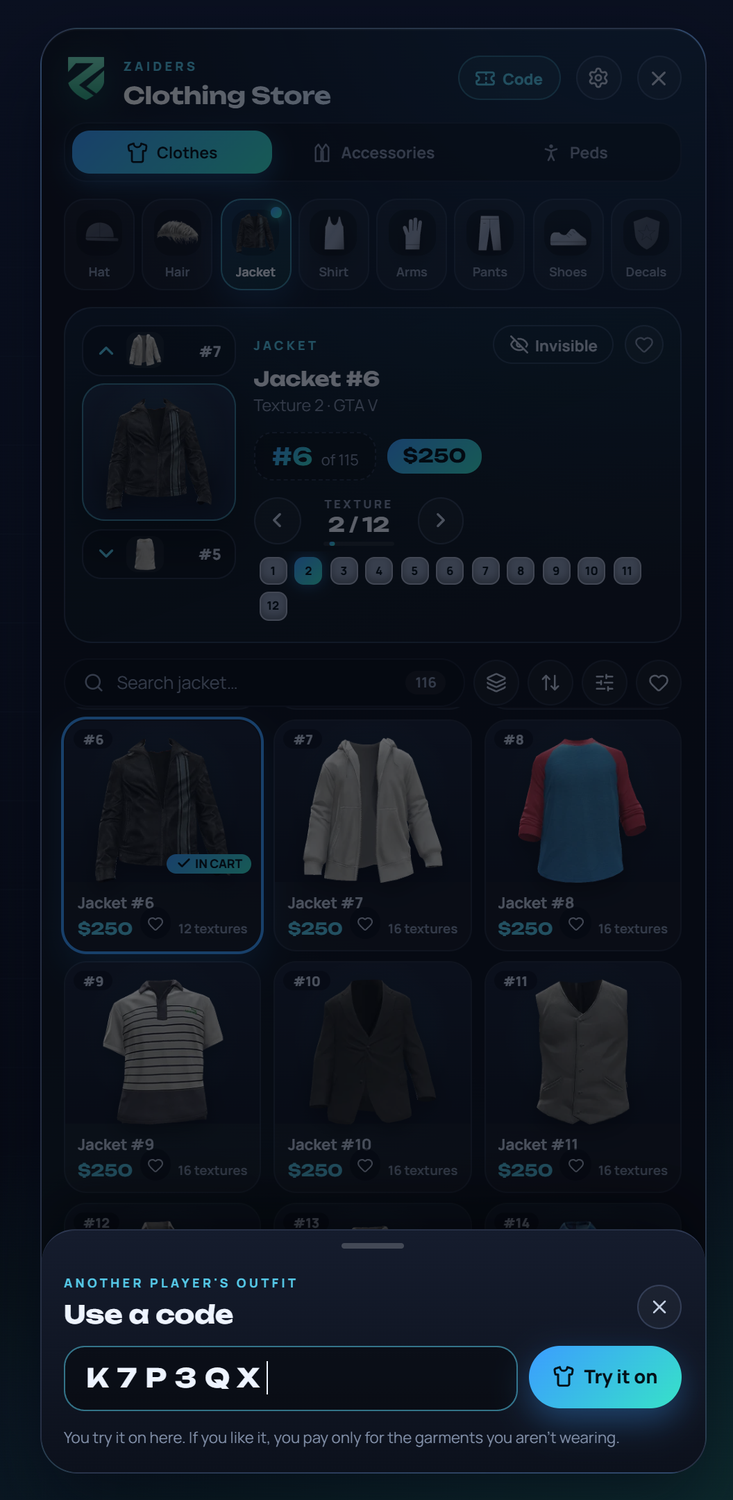
Players can share their outfits with a 6-letter code from the wardrobe. Whoever gets a code taps Code at the top of a clothing store, types it and taps Try it on.
The outfit goes on to try, and only the garments the player isn't wearing go into the cart. Garments that are out of stock, or only for a job or group they're not in, stay as their own. Nothing is given away for free: they pay for what they keep.
Codes last 24 hours (Config.Wardrobe.shareHours). Code isn't offered in a store that sells only some things, because an outfit would bring garments it doesn't sell. See Wardrobe & outfits.
Accessories and Peds
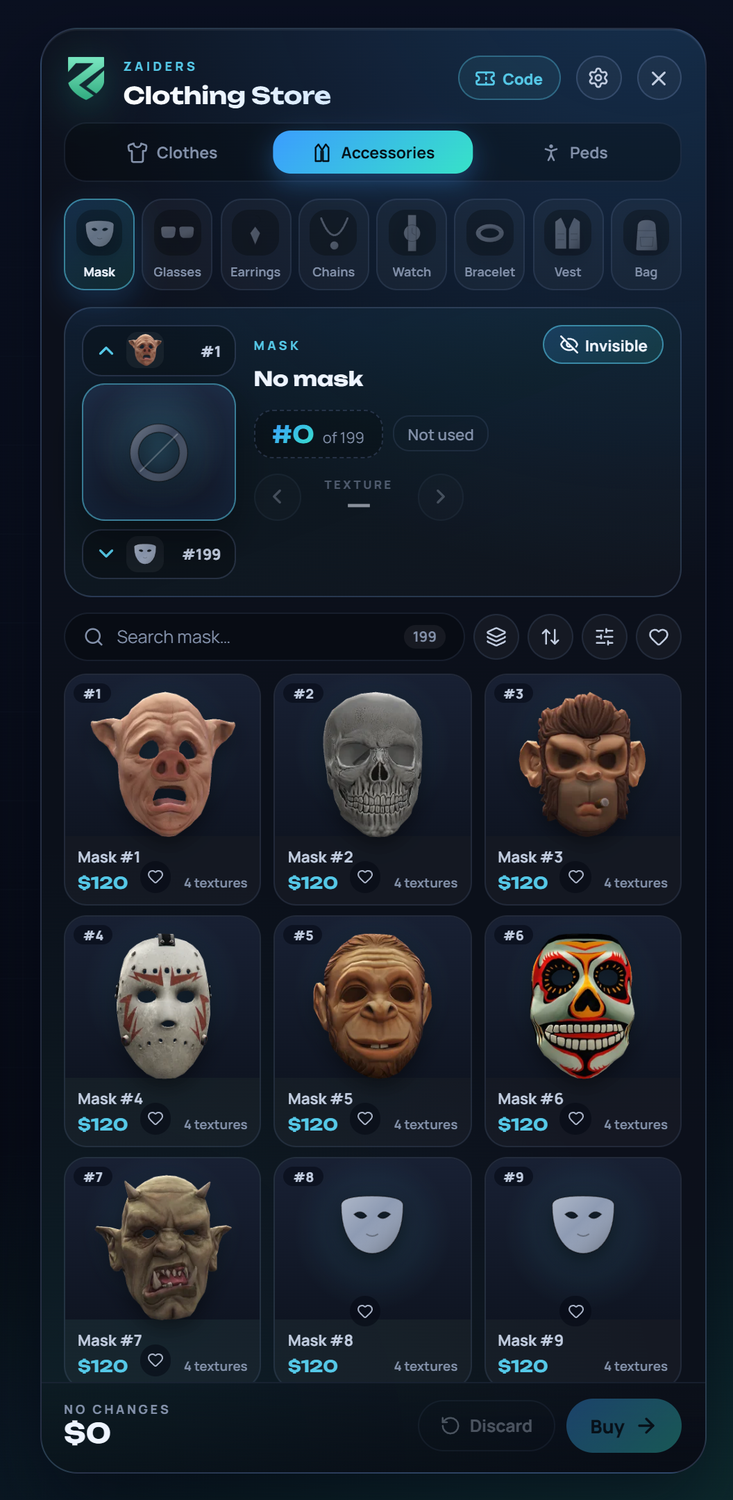
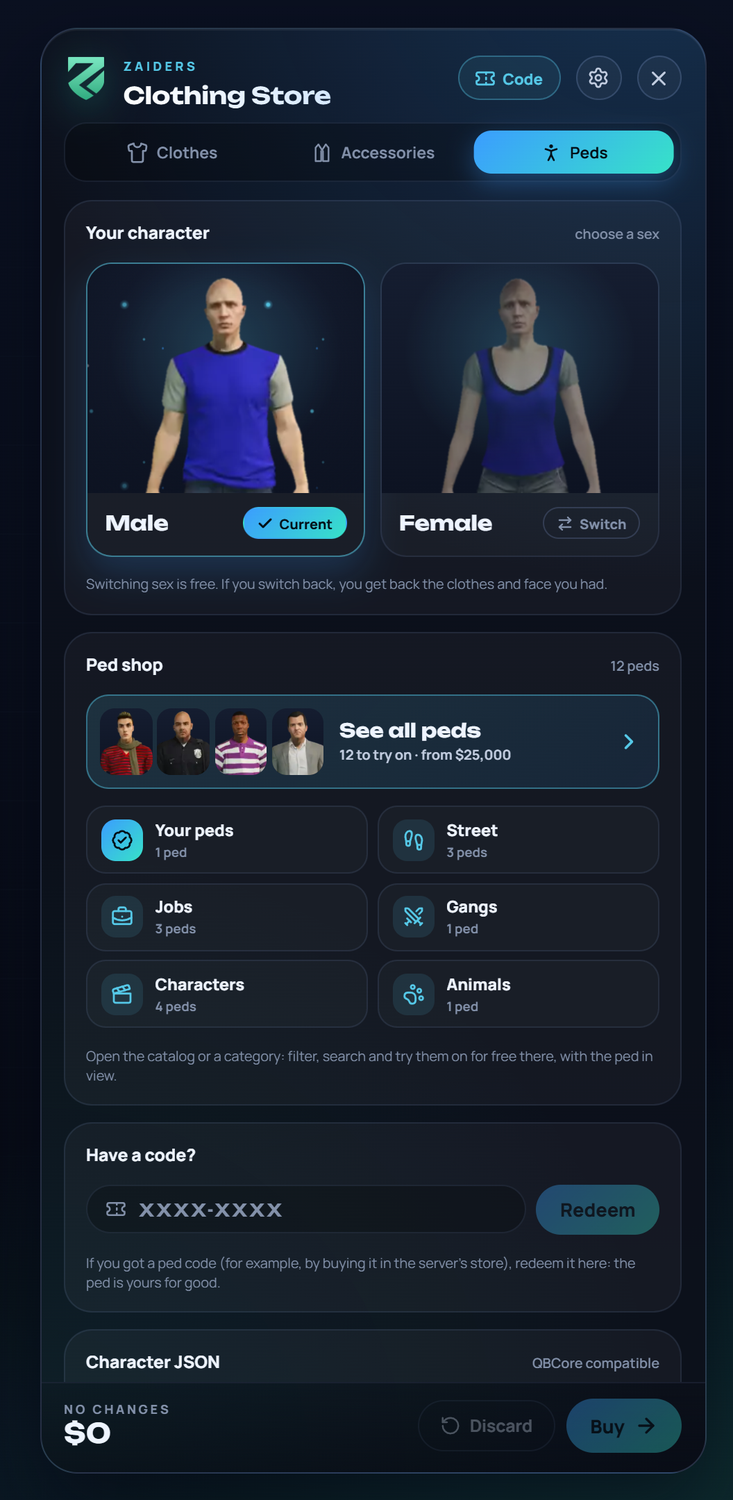
The Character JSON at the bottom of Peds copies the character's look in QBCore's appearance format, to take it to another server. Admins can also paste one there (QBCore, illenium-appearance, fivem-appearance or ESX skinchanger formats). A broken JSON never changes the character.
Each store's catalog and prices
Each store on the map can have its own catalog and prices, set in the panel (Shops → the store → Catalog and prices), such as a mask shop, a pricier boutique or an outlet:
- Prices: a percentage of the usual prices, each garment's own price included.
- Sells (clothing stores): Everything, or Only some things, such as masks only. The menu then shows only those sections and slots, and opens on the first one.
- Packs (clothing stores): All, or Only some. Clothes from the other packs don't show; the arrows and typing a number skip them. Editors still see them, marked Not sold here.
The prices and the catalog count only for whoever is at that store: the server checks the store the player is actually standing in, so nobody uses another store's discount. A menu opened away from every store (another script, a housing wardrobe) sells everything at the usual prices. Barber shops and tattoo shops can have their own percentage too. See Map shops & blips.
For admins: editing a garment
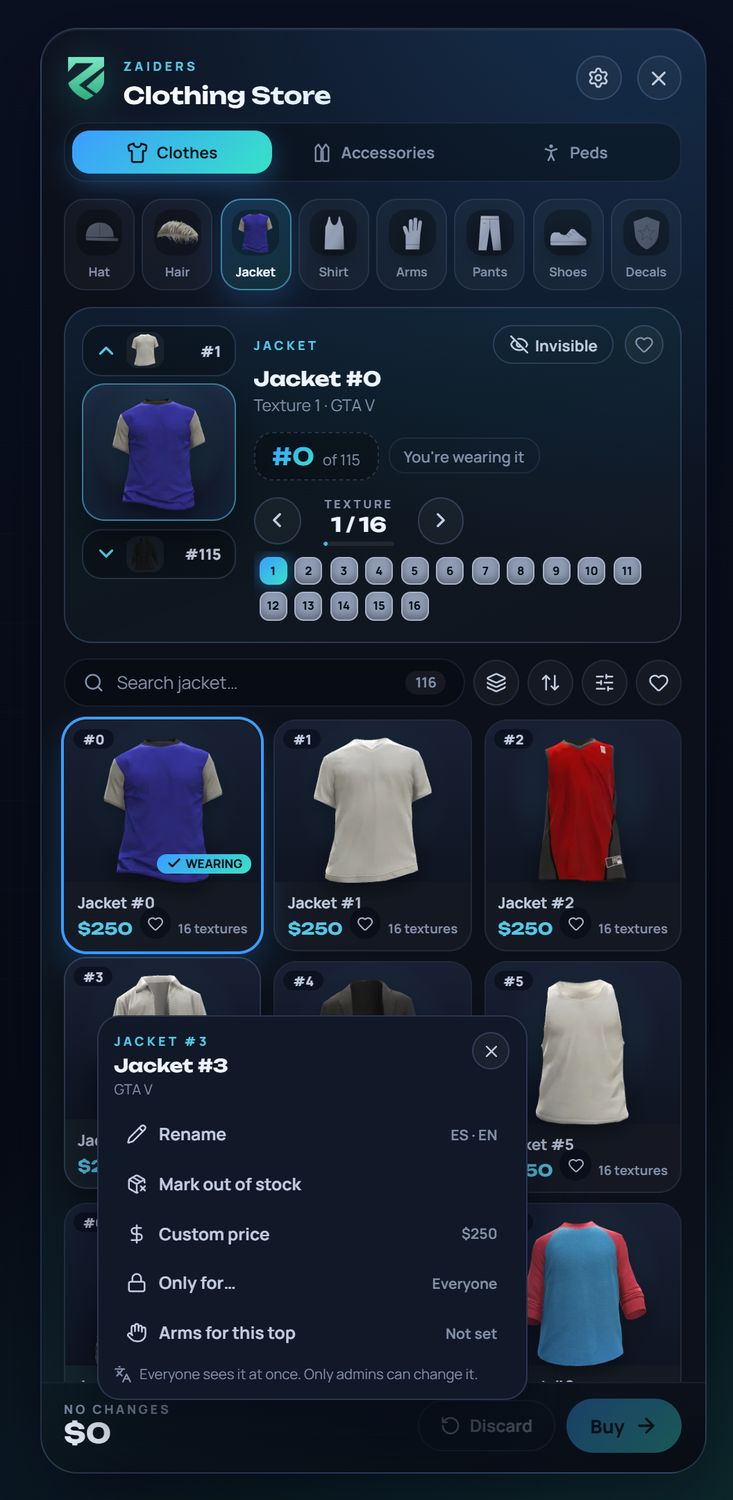
Admins and catalog editors can right click any garment, in the grid or on its card:
- Rename: a name in English and one in Spanish. Use the game's name goes back.
- Mark out of stock / Put back in stock.
- Custom price: a price for this garment only. Use the shop's price goes back.
- Only for…: jobs, gangs (from a grade) or groups by permission, such as VIP.
- Arms for this top (jackets): Use the ones on (#n) saves the arms you have on as this jacket's arms; Remove takes them off it.
- Bare arms or gloves (arms): the Bare arms switch marks them as a kind of bare arms. Or, for gloves, the number of the bare arms they're for and a Glove style (such as "Black": the same name on every kind of arms, so gloves follow the player from one jacket to another). Not gloves undoes it.
Everyone sees the change at once. The panel's Catalog editor does the same for many garments at a time.
Out of stock
A garment out of stock isn't sold to anyone, and players don't see it. Admins still see it, marked, so they can put it back in stock. If an admin tries it on, the cart marks it and won't let them pay until it's removed.
Garments only for some players
A garment can be only for some players:
- Jobs or gangs, from a grade on. For example, police uniforms only for the
policejob. - Groups by ACE permission, such as VIP, from
Config.GarmentGroups. See Commands & permissions.
Players outside the group don't see those garments, and the server doesn't sell them, even if another script opens the menu for them.